Check the whole week
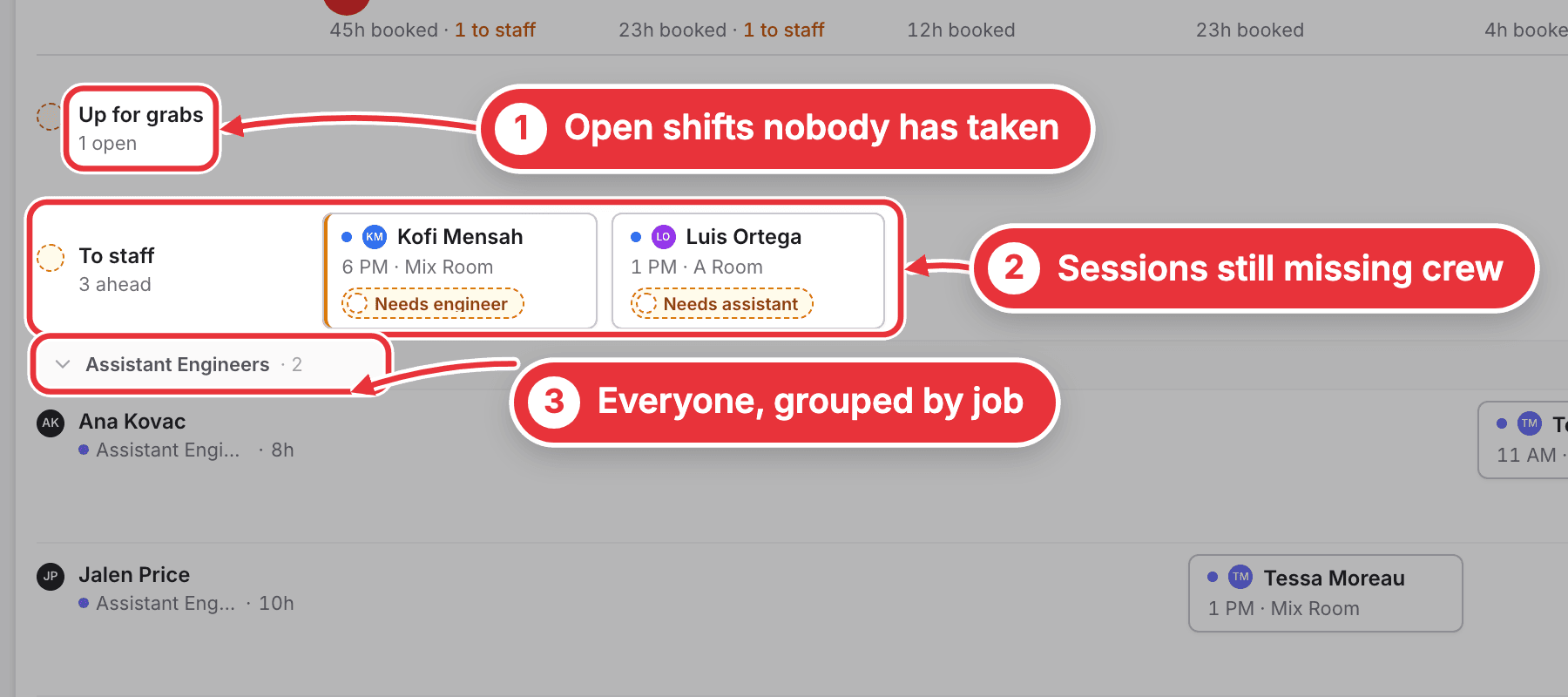
Switch the Week from Rooms to Staff to see everyone's week at once: each row is a person and each column is a day.
The orange number on Staff counts what still needs someone. Get it to zero.
Add shifts on this view
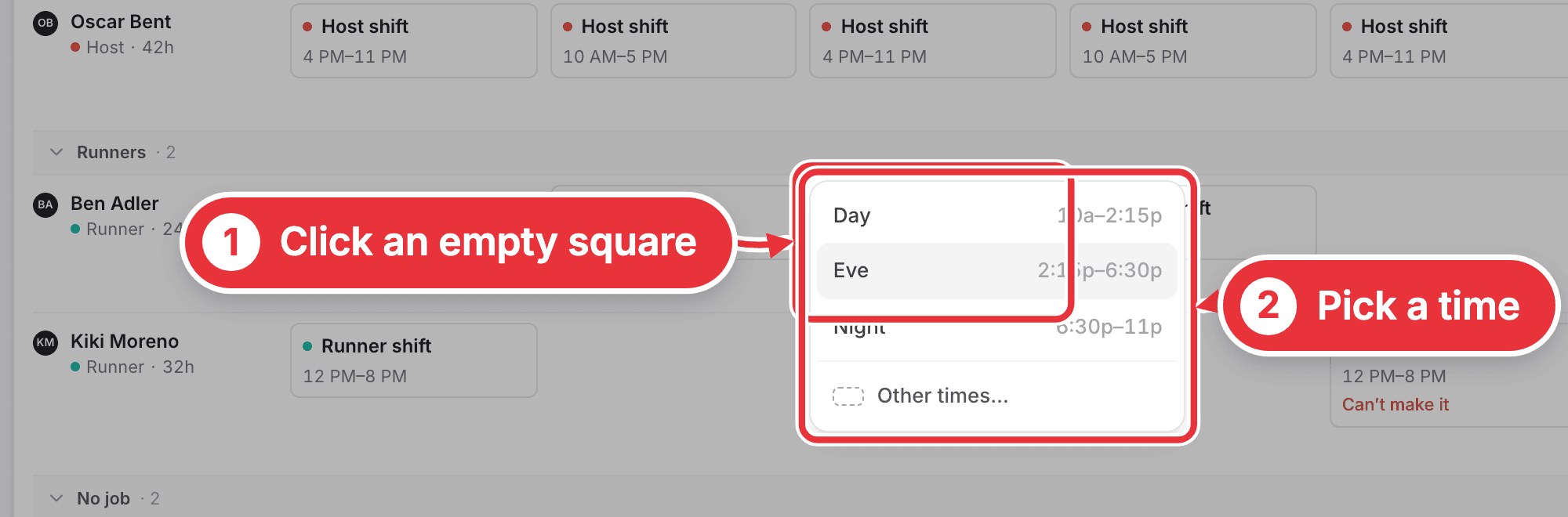
Step 1. Click an empty square in someone's row.
Step 2. Pick a time, like Day, Eve or Night. The shift is added as soon as you pick.
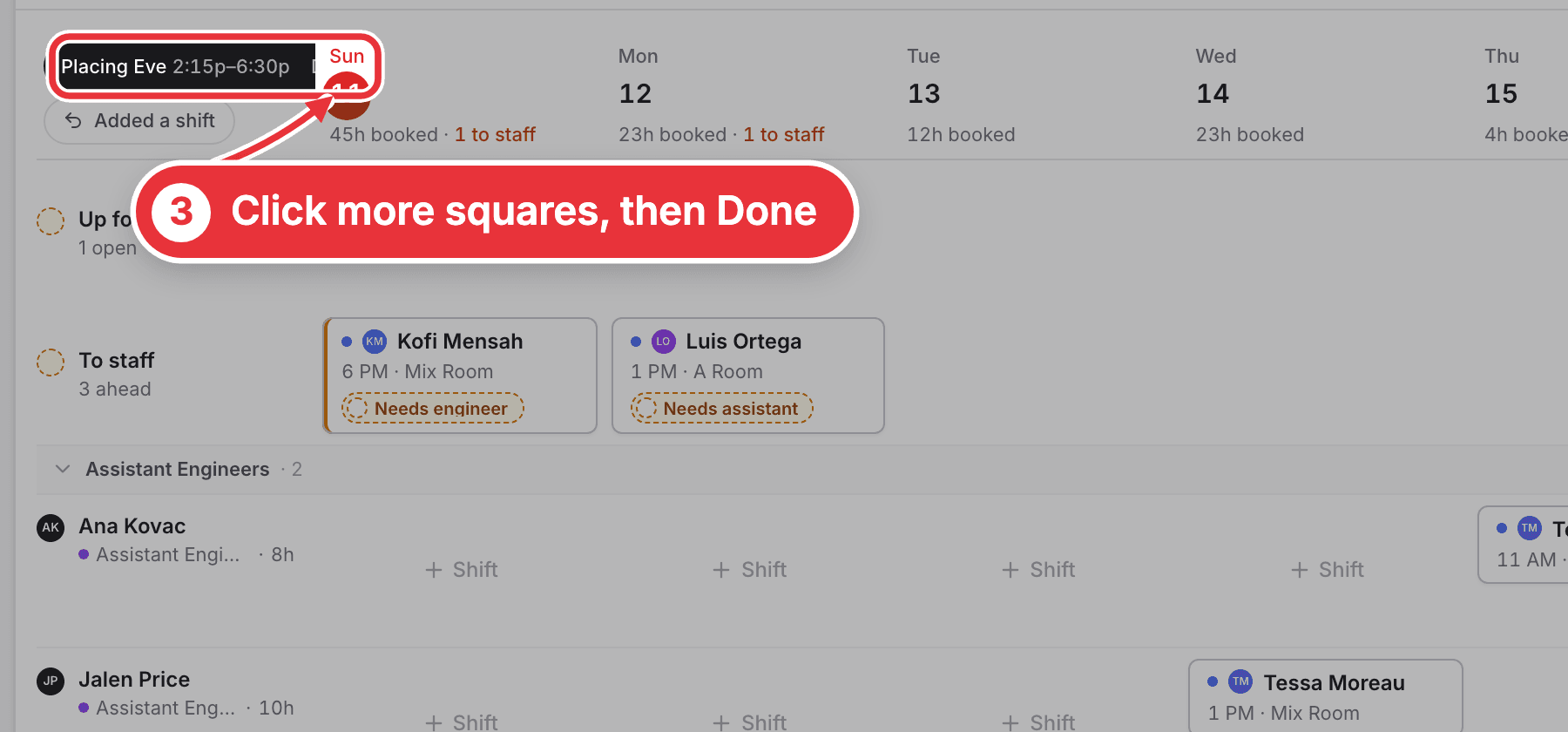
Step 3. While that time is picked, every square you click gets the same shift. Press Done when you're finished, or the undo button if you clicked one by mistake.
What your staff see
Each person has their own page, Me. It opens on when they're in next. Under that:
- Their next 7 days, with Can't make it on each one. There's nothing to confirm. Once it has been on their screen, you see Seen on it. Seen and no Can't means they're coming.
- Asked to cover and Open shifts: work they can pick up with Take it. These only show when there's something in them.
- When you work, at the bottom: where they block days off. There's no approval step. You'll see Off on that day in the Staff view.
Pay in the sidebar shows what each person worked, counted the way their job is paid: by the session, the hour or the day.