Every way to assign someone
There are 12 places a manager can put someone on a shift or a session. Each one does one of three things: adds a shift, fills a seat on a session, or answers a Can't make it. Where one click saves straight away, the table says so.
Shifts (hosts, runners, anyone)
| # | Where | What you press | It saves when | On a phone |
|---|---|---|---|---|
| 1 | Calendar › Week › Plan shifts, an empty day in someone's row | Point at it: it shows your usual shift, like + 4–11 PM. Click to put it in. Click the shift for Shift times or Remove shift | At once, with a dashed edge. The crew is told when you press Publish | No |
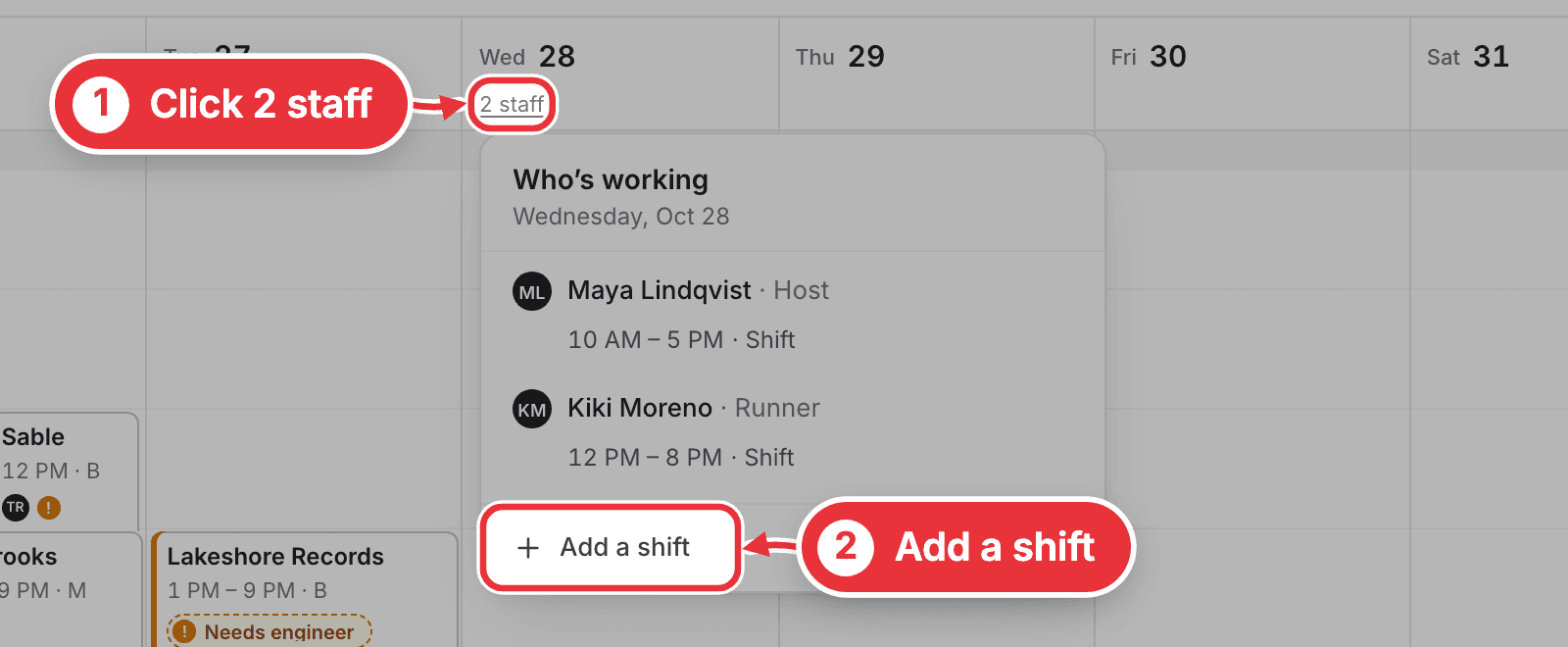
| 2 | Calendar › Day, Week or Month, a day's grey line, like 2 staff | Add a shift → New shift form | You press Add | No |
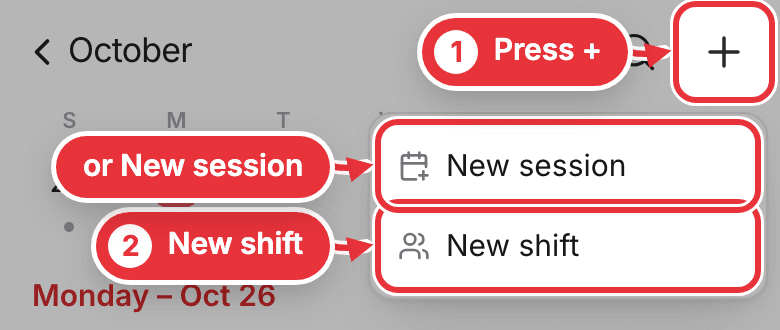
| 3 | The Calendar's + on a phone | New shift → New shift form | You press Add | Phone only |
| 4 | The New shift form (from 2 and 3) | Person → Anyone free posts the shift for staff to take | You press Add. No Publish needed | Yes |
Sessions (engineer, assistant, producer, host and runner seats)
| # | Where | What you press | It saves when | On a phone |
|---|---|---|---|---|
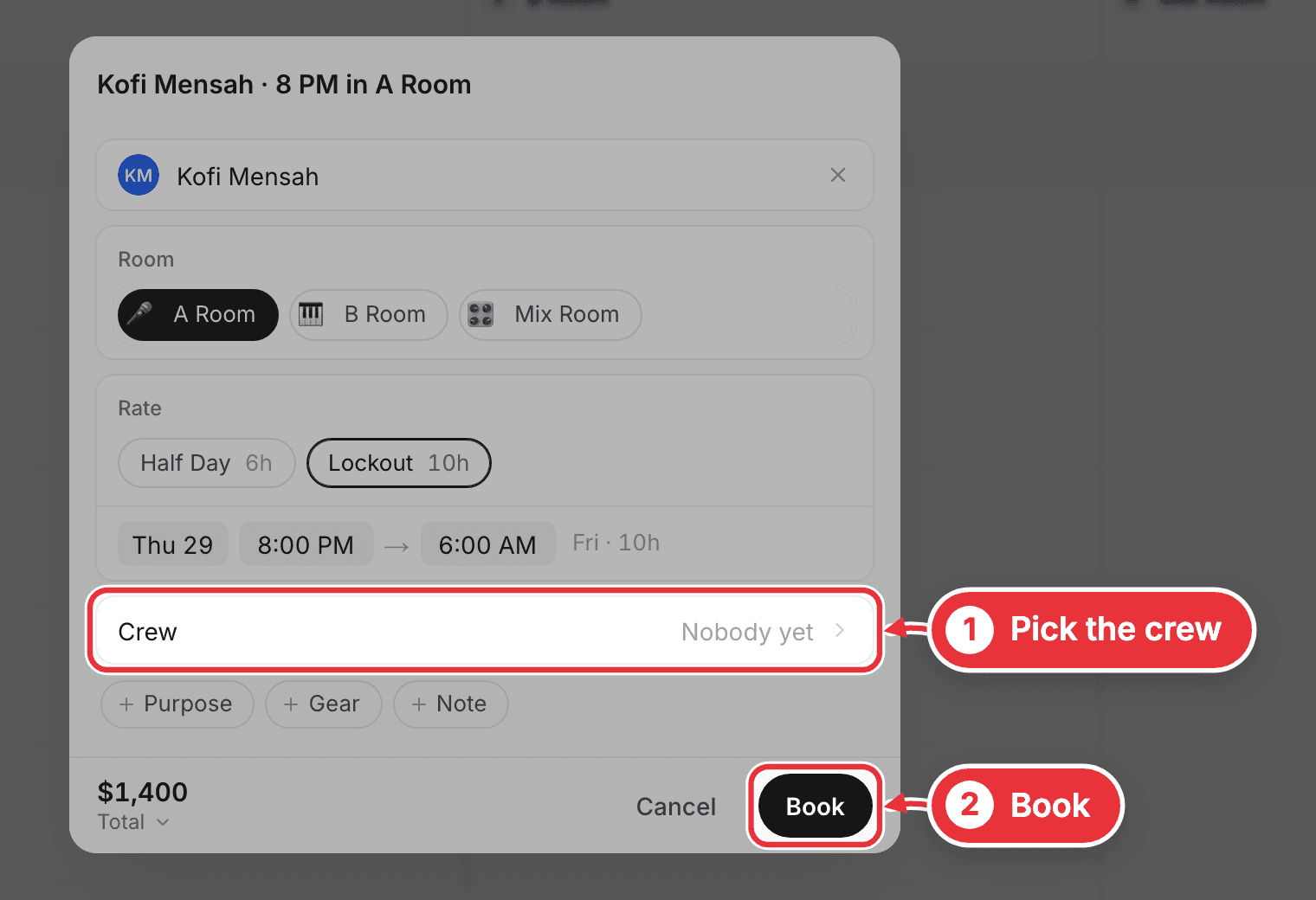
| 5 | Booking a new session | The Crew line in the New session form | You press Book | Yes |
| 6 | The session page | Pick an engineer, the empty seat, or Add someone → Crew list → tap a name | You press Save | Yes |
| 7 | The Crew list | Ask everyone free or Ask for a runner | At once (messages go out) | Yes |
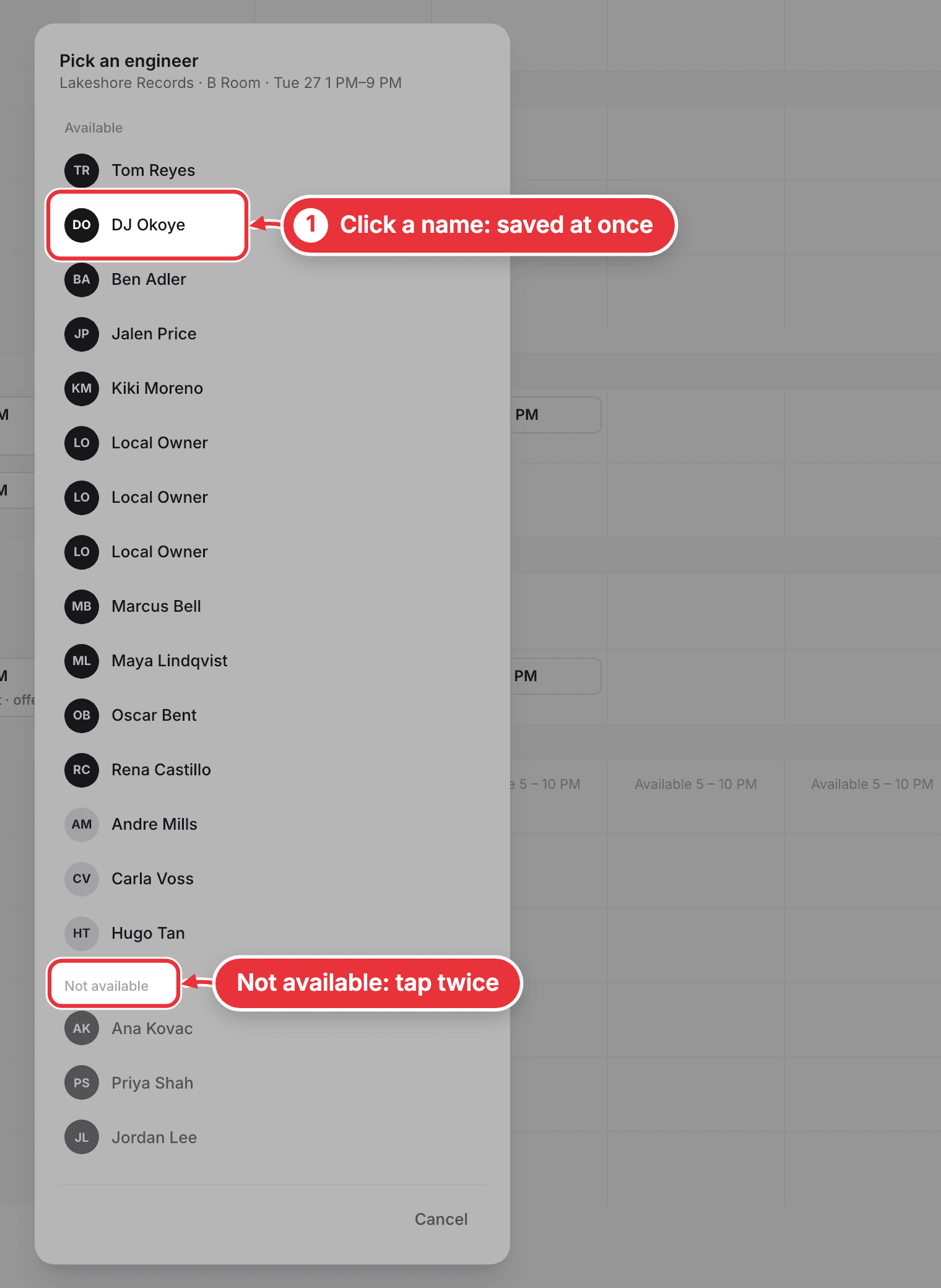
| 8 | Calendar › Week › Plan shifts, the grey Sessions to staff band | Click a session → Pick an engineer → click a name. Someone Not available takes a second tap | At once | No |
| 9 | Your alerts (the bell in the open sidebar; on a phone, your Me page) | A "No engineer assigned" alert → Assign → click a name | At once | Yes |
| 10 | Your Me page › Needs people: every gap in the next 7 days, open shifts too | Find someone → Put on beside a name, or Ask everyone on an empty engineer seat | At once | Yes |
Answers to "Can't make it"
| # | Where | Choices | It saves when | On a phone |
|---|---|---|---|---|
| 11 | A shift, in Plan shifts | Nothing to press: it goes to the team by itself. A Can't from before 11 Oct may show Ask the team | Ask the team: at once | No |
| 12 | A session's crew, on the session page | Put someone else on (opens the Crew list) · Keep them. Find cover only shows when no cover request is out yet | Find cover and Keep: at once | Yes |
Pictures of the ones the other guides don't show
2 · A day's grey line. It opens Who's working, with Add a shift at the bottom.
3 and 5 on a phone. + asks New session or New shift.
5 · Booking a new session.
8 · Plan shifts, the Sessions to staff band. One click on a name saves.
Places that don't assign anyone
- Calendar › Staff: the To staff list names every session still missing someone. Clicking one opens its page (row 6). Working just lists who's on.
- A day's amber line, like 1 to staff: opens the first session that day still missing someone (row 6). It shows instead of the grey line until that day is staffed.
- Up for grabs, at the top of Plan shifts: the shifts posted for anyone free. Your staff take them with Take it on their Me page.
- Requests: booking a client's request makes the session with nobody on it. Add the crew afterwards (row 6).
- Dragging a person onto the Calendar: no longer exists.