Join your studio and set up your phone
You do this once, on your phone, and it takes about two minutes. Your manager shows a join code on a screen or sends you an invite link.
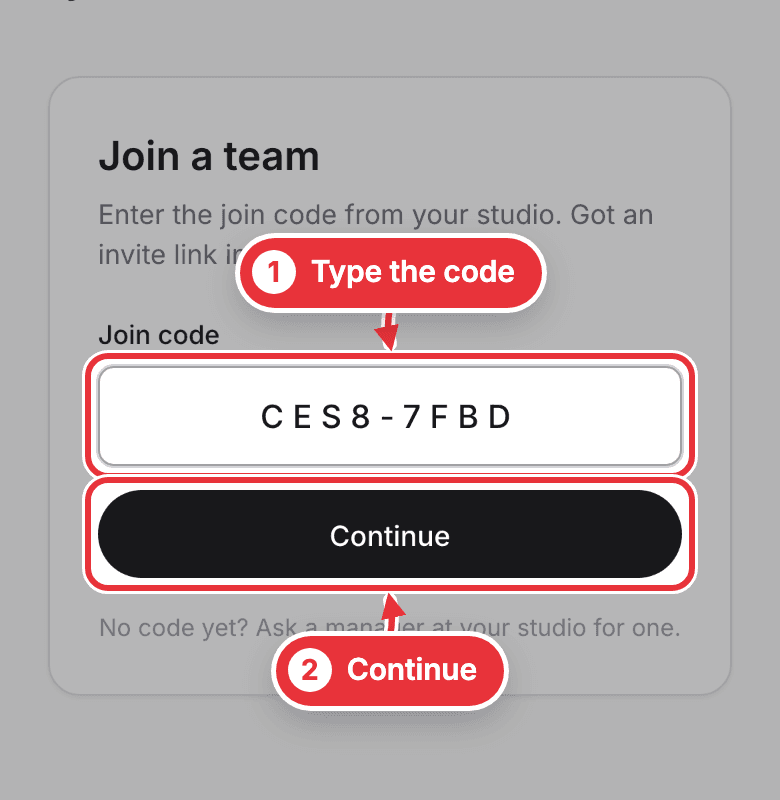
Step 1. Point your phone's camera at the code on the studio's screen. Or open studioside.app/join and type the code. Press Continue.
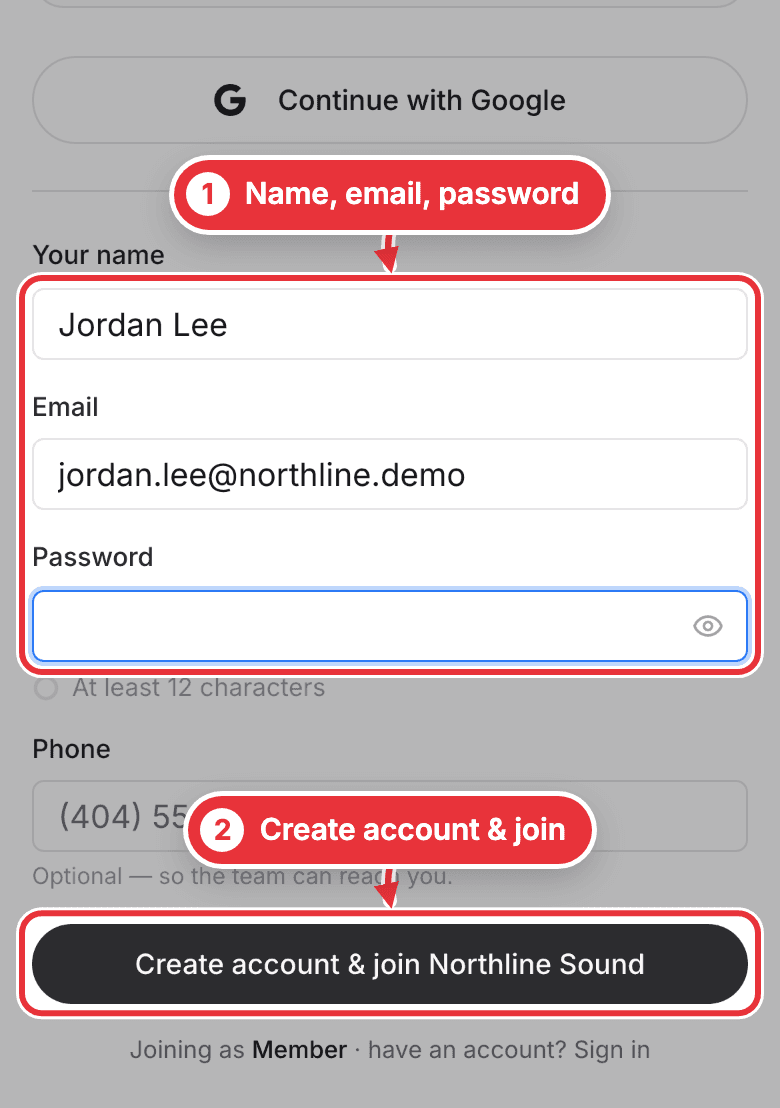
Step 2. Type your name, email and a password (at least 12 characters). Your phone number is optional. Press Create account & join followed by your studio's name. Came from a personal invite link? The button says Join followed by your studio's name. Already use StudioSide at another studio? Press Sign in at the bottom instead.
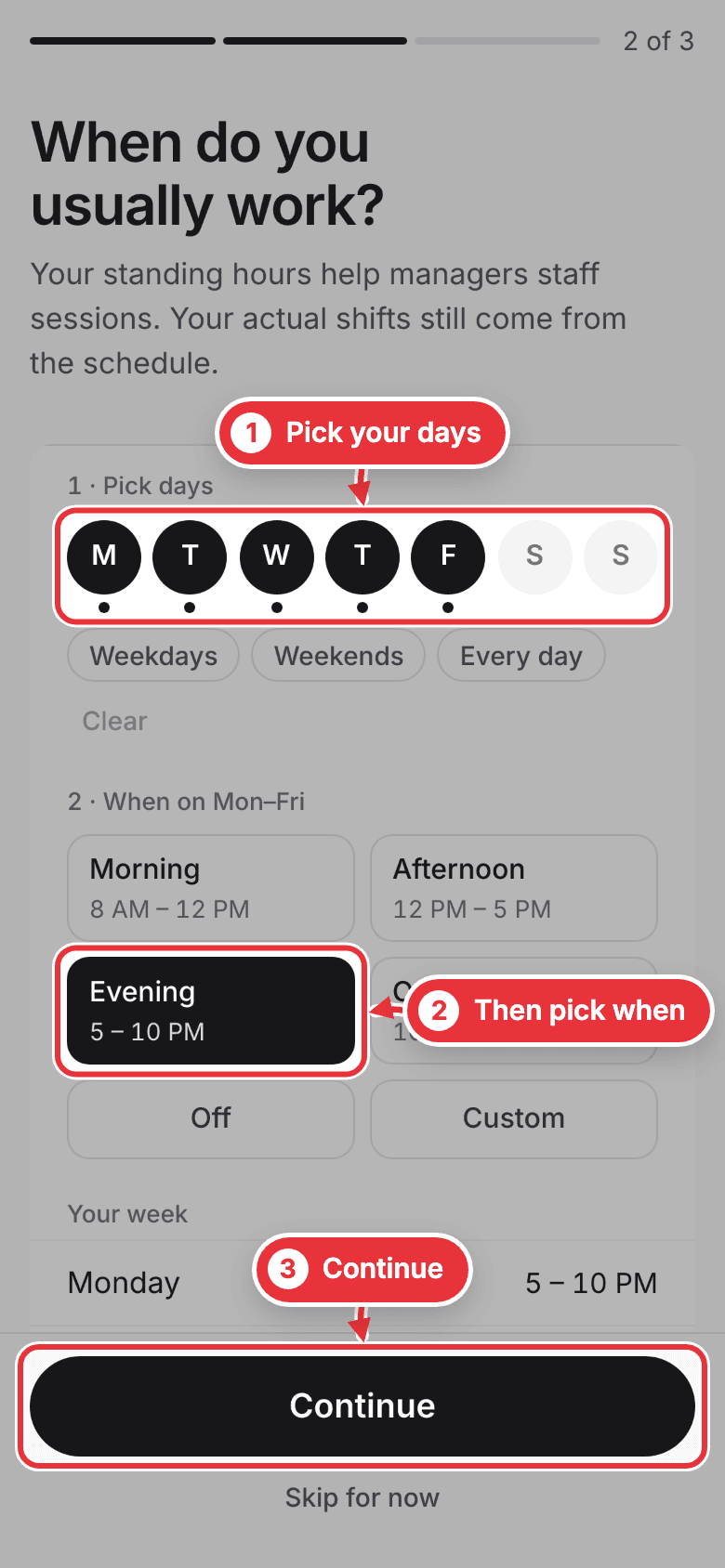
Step 3. Say when you usually work. Pick your days, then pick when: Morning, Afternoon, Evening or Overnight. Press Continue. Not sure yet? Press Skip for now and do it later from Me.
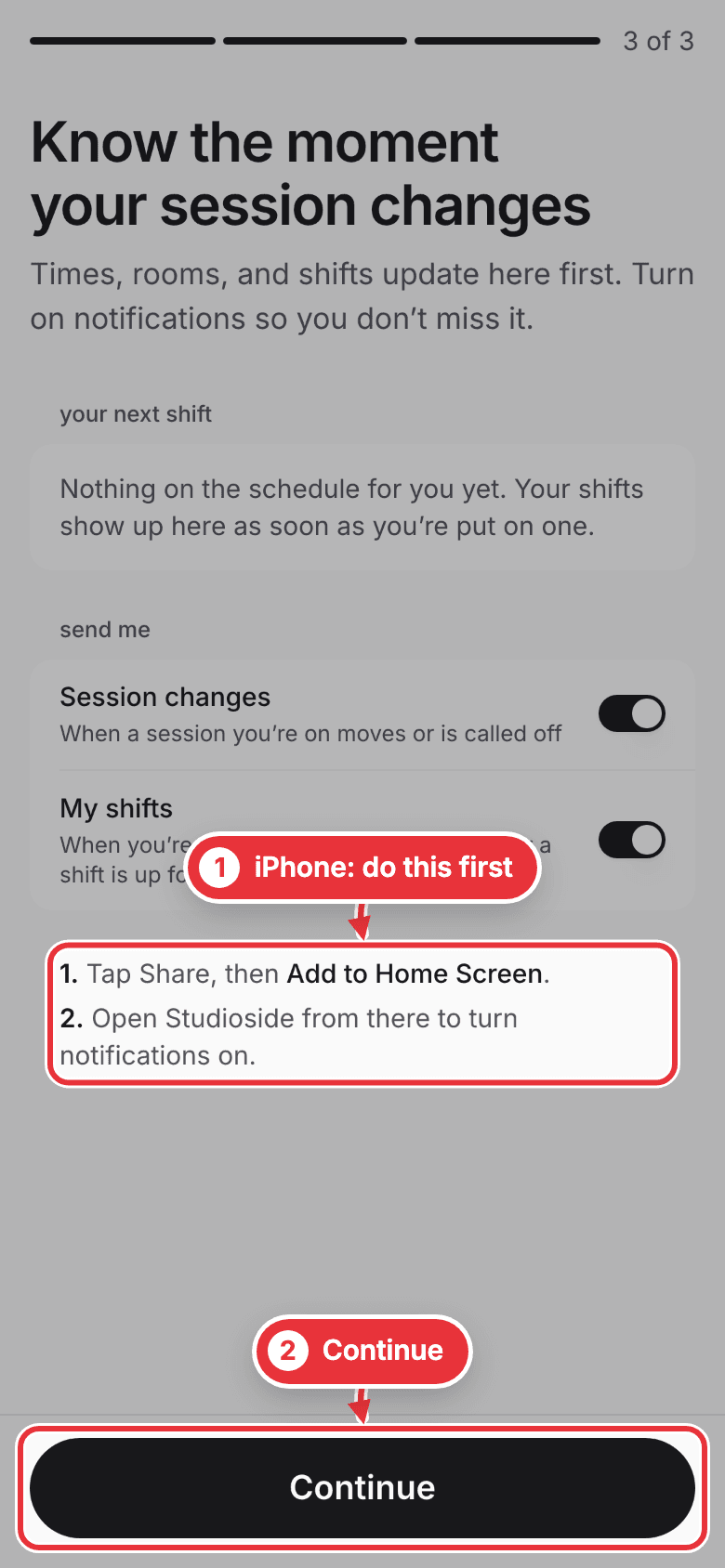
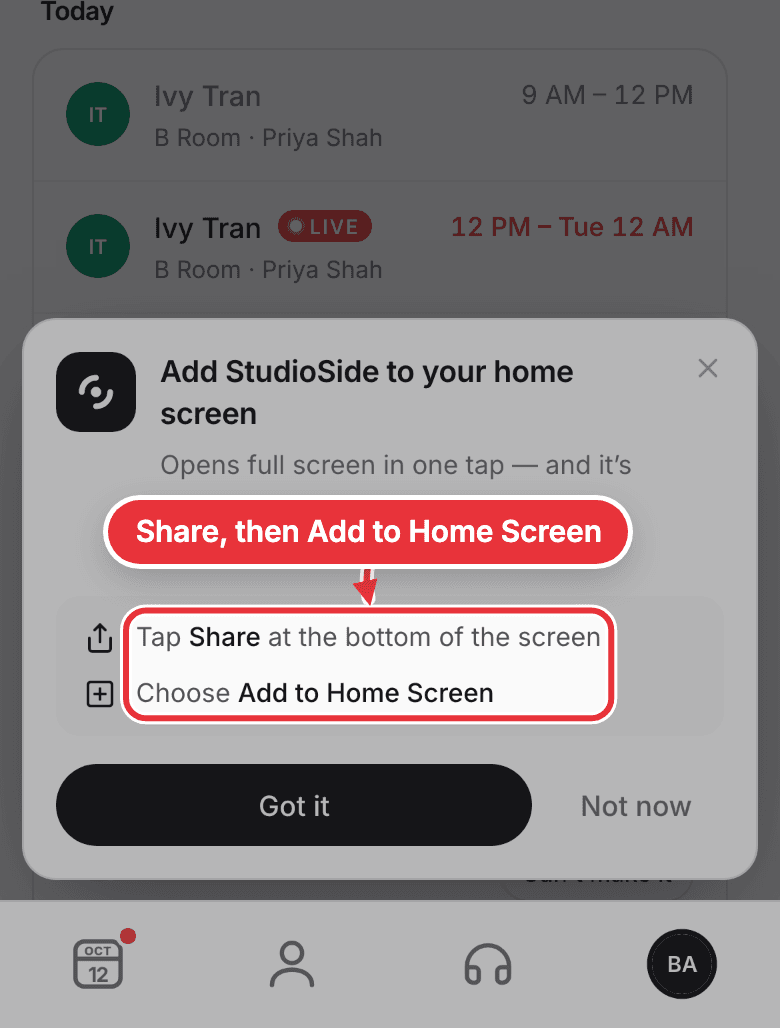
Step 4. On an iPhone, put StudioSide on your Home Screen. In Safari, tap Share, then Add to Home Screen. It's the only way an iPhone can buzz you. Then press Continue.
Missed it? Me shows Add StudioSide to your home screen. Press Show me how for the same two steps.
Step 5. Open StudioSide from the new icon on your Home Screen. At the top of Me, next to Alerts are off on this device, press Turn on, then Allow. On Android, it's there straight away.