Refund a card payment
Card refunds happen in Settings › Payments, not on the invoice. Only the studio owner can do it, and StudioSide reopens the bill by itself once the money goes back.
Before you start
- You need to be the owner. Managers can open Settings › Payments, but the list of payments only opens for the owner.
- Card payments need to be set up. The list appears once the page says "You're set up to take card payments". It's still there while card payments are paused, so you can refund at any time.
- There's no Refund button on the invoice. A bill paid by card doesn't offer one yet, so always start from Settings.
- The list only holds payments made through StudioSide. Money paid to you directly, like Zelle, cash or a check, is at the end of this page.
Refund it
Step 1. Press your picture at the bottom of the sidebar and choose Studio settings, then Payments. If the sidebar is open, press the small arrow beside your name instead: your name itself opens Me.
Step 2. Under "You're set up to take card payments", press Payments. Every card and bank payment your clients made through StudioSide opens below.
Step 3. Press the payment you want to give back. Check the client's name, the date and the amount before you go on.
Step 4. Press Refund. Leave the full amount, or type a smaller one to give part of it back. Pick a reason, then confirm.
What happens next
The bill is owed again. StudioSide records the refund on the invoice and moves the bill back to Owed on your Invoices page. If you've turned on Remind clients about invoices for me (Settings › Invoice), reminders will chase it like any unpaid bill. If the client shouldn't pay it again, close it:
| You gave back | The bill now shows | To close it |
|---|---|---|
| The full amount | The whole total owed | Open the bill, press ⋯, choose Void invoice |
| Part of it | The part you gave back owed | Open the bill, press ⋯, choose Issue a credit note for that amount |
- The client sees the money in about 5–10 business days, depending on their bank. A refund made soon after the payment may just drop off their statement instead. StudioSide doesn't email them about it, so let them know yourself.
- Stripe keeps its fee. The fee on the original payment (2.9% + 30¢ on a US card, 0.8% capped at $5 on a bank payment through Stripe) isn't returned.
- It comes out of your Stripe balance. If the balance is short, a card refund waits until enough new payments come in.
Source: Stripe — Refund and cancel payments
Paid by Zelle, cash or check?
Money you collected yourself never went through StudioSide, so send it back the way it came. Then take it off the bill:
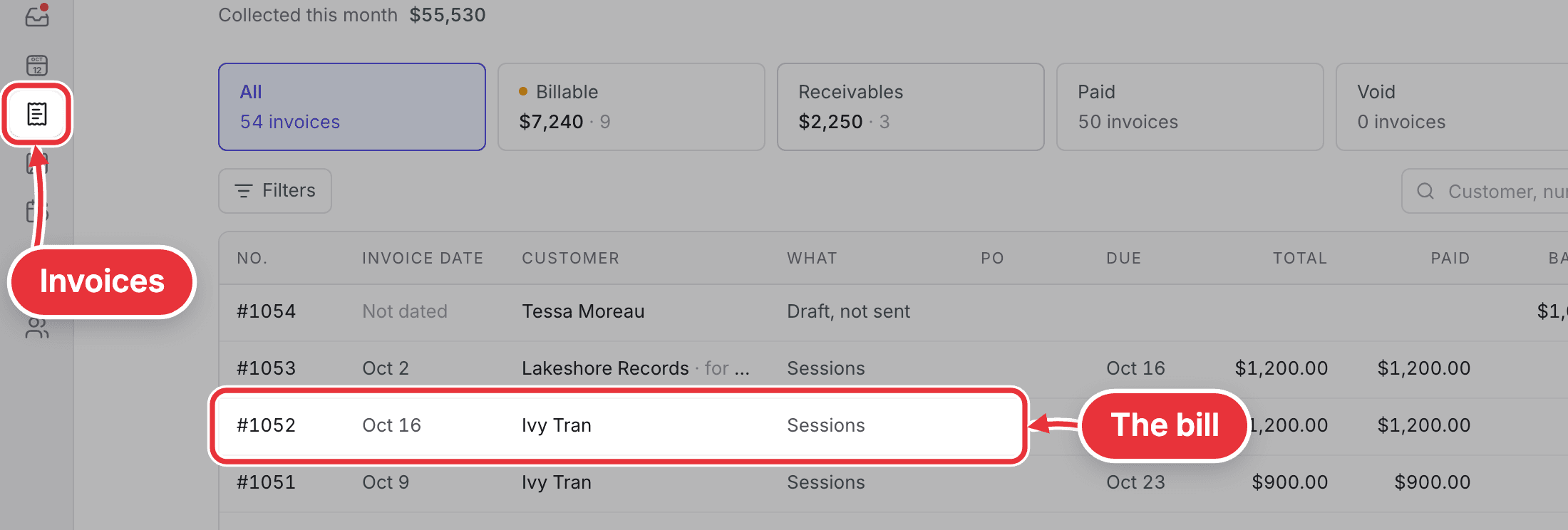
Step 1. Open the bill from Invoices.
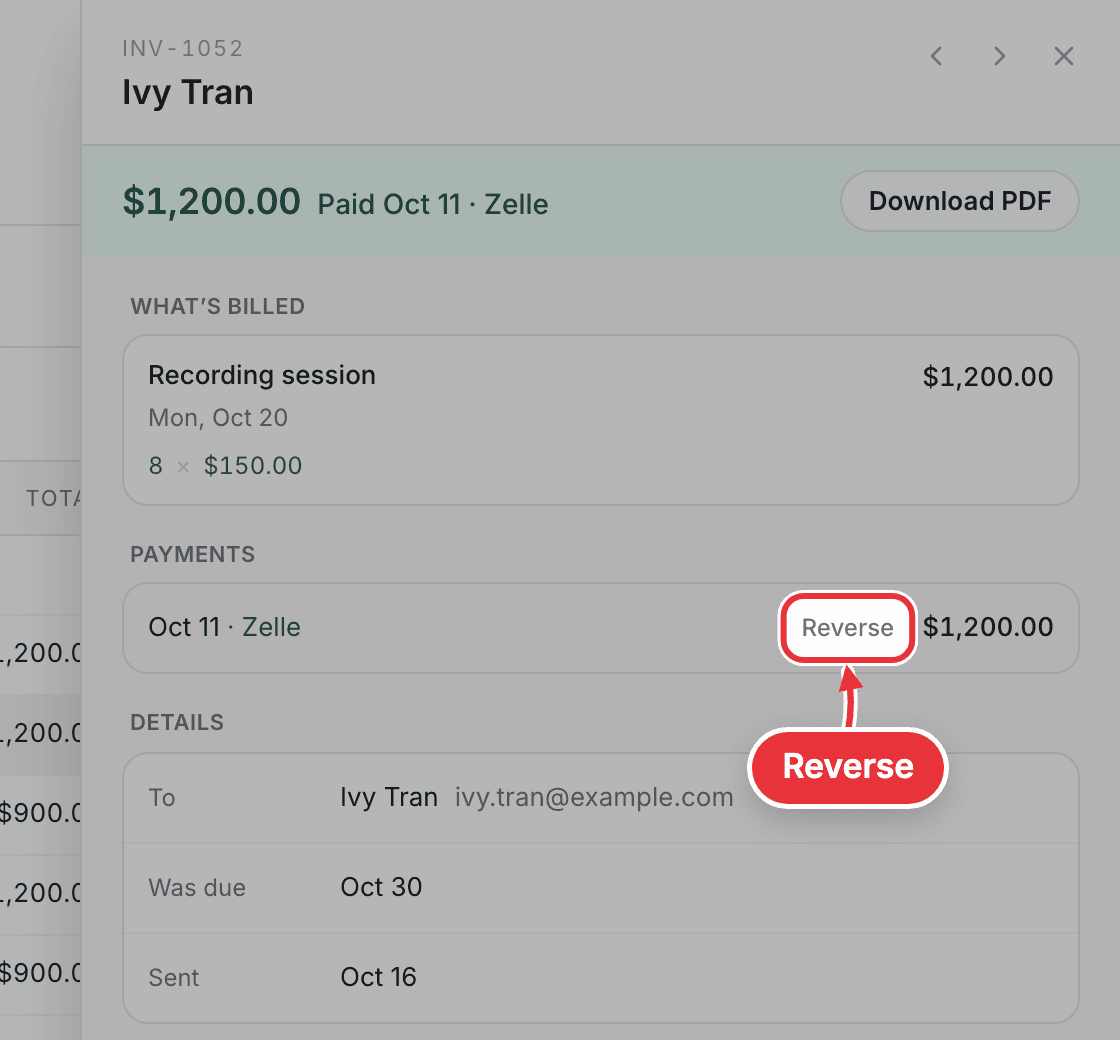
Step 2. Under Payments, point at the payment and press Reverse.
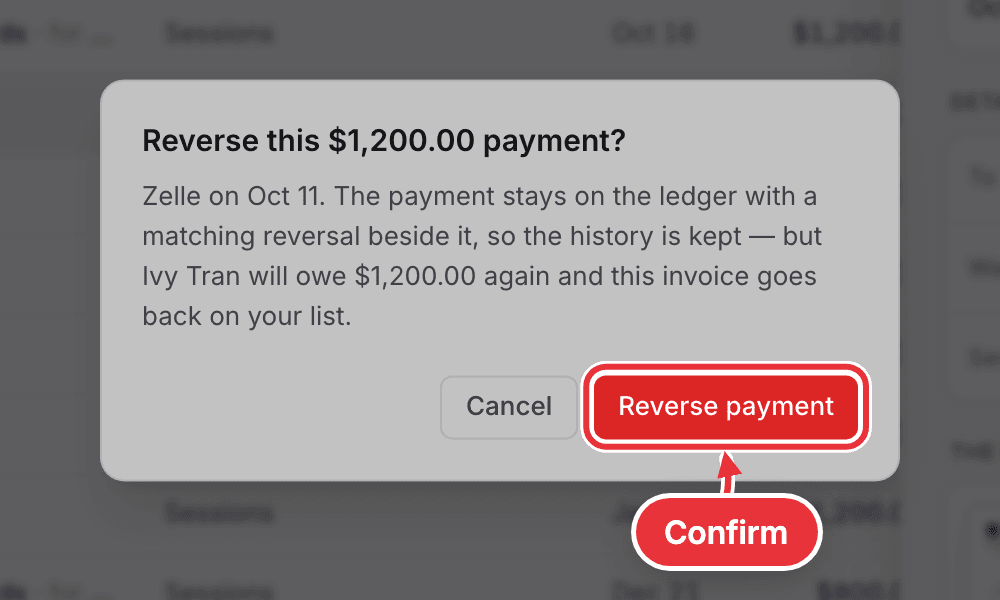
Step 3. Press Reverse payment to confirm. The payment stays on the record with a matching reversal beside it, and the bill is owed again. Close it the same way as above if the client shouldn't pay.