Book a session
Managers book sessions on the Calendar. A booking takes four answers: who it's for, which room, which package, and who's working it.
Step 1. On the Calendar, press Day and click an empty time in a room's column. The New session form opens with that room and time filled in. Or press + at the top right and pick the room yourself.
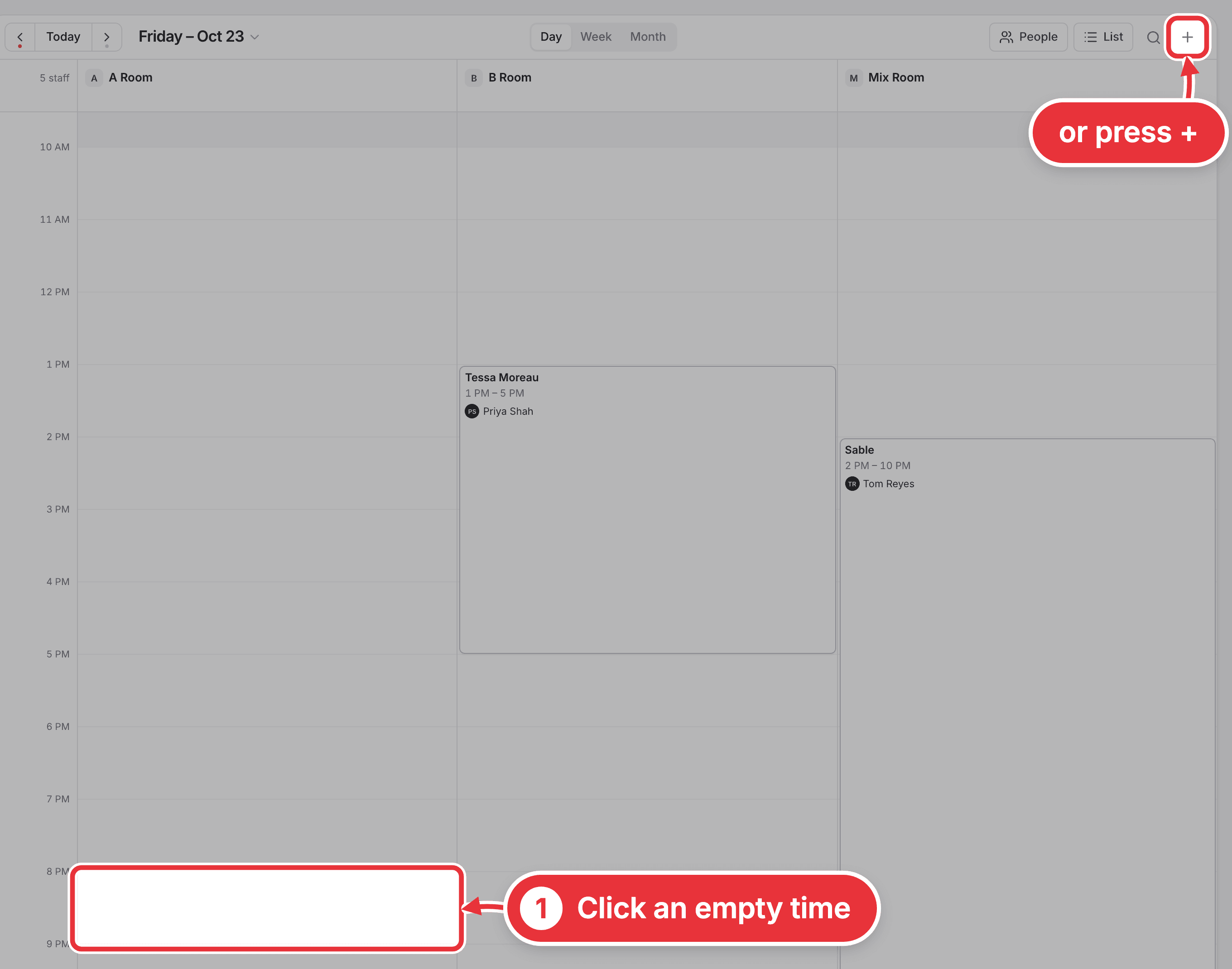
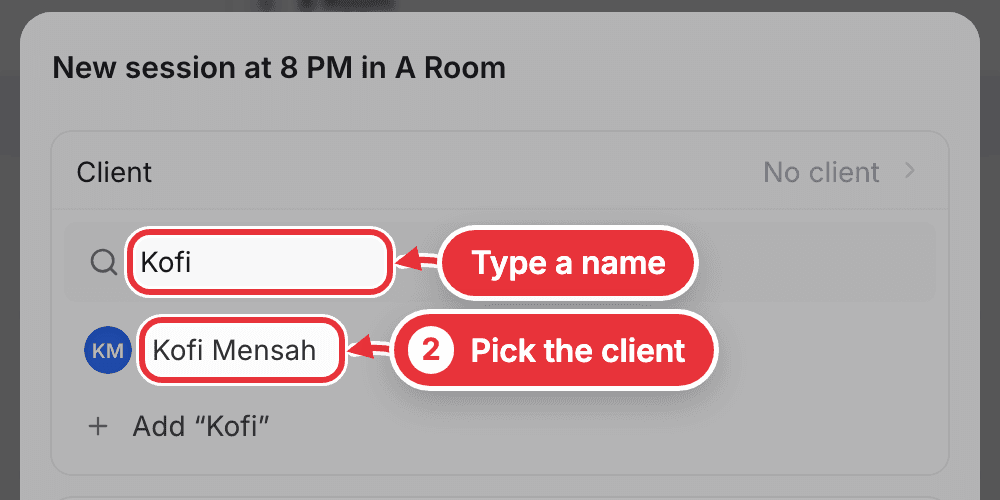
Step 2. Press Client, type the client's name and pick them from the list. Someone new? Press Add "their name" at the bottom of the list.
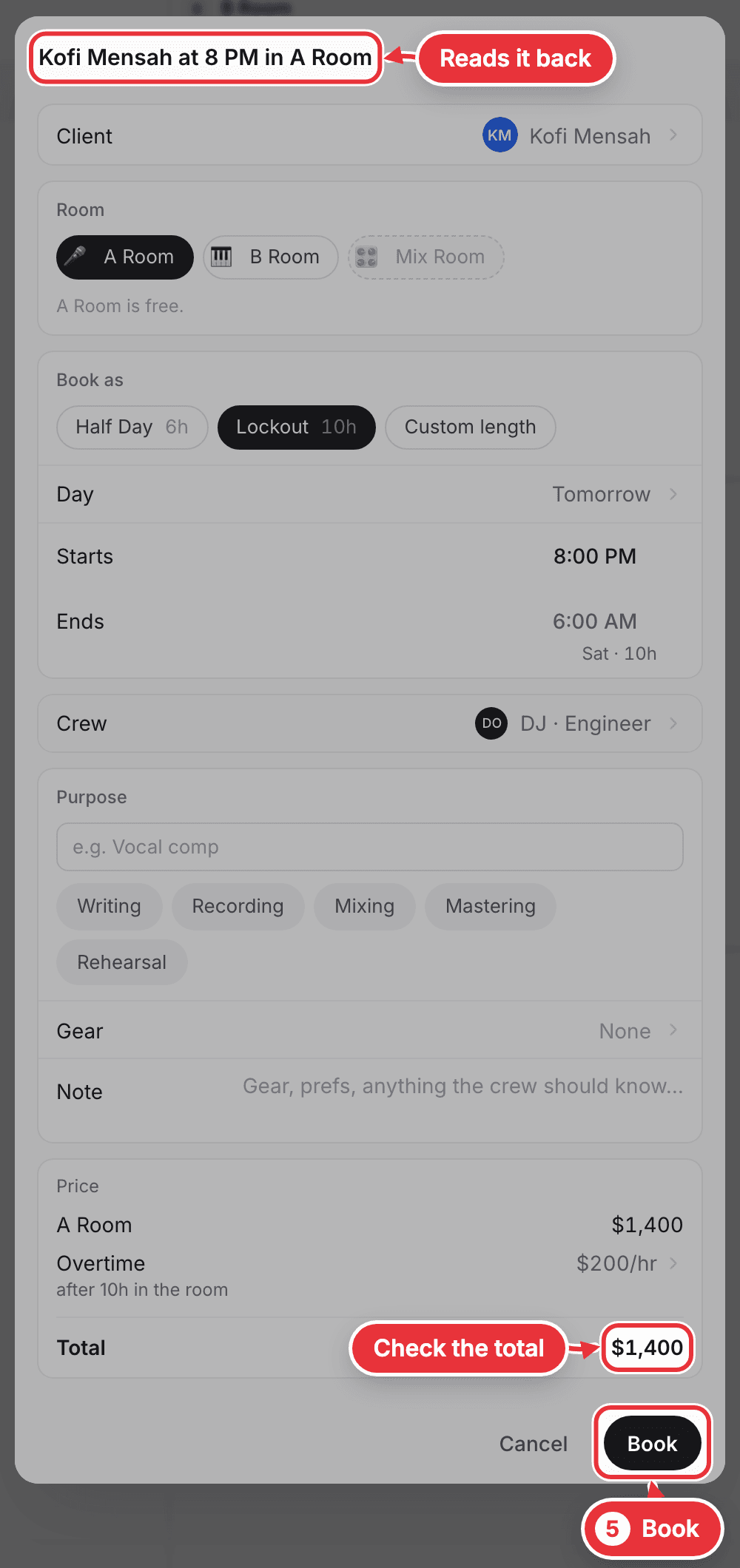
Step 3. Check the Room: a room that's already busy then is greyed out. Under Book as, pick the package, like Lockout 10h or Half Day 6h. The length is the package, so Ends fills in by itself: you only check Starts.
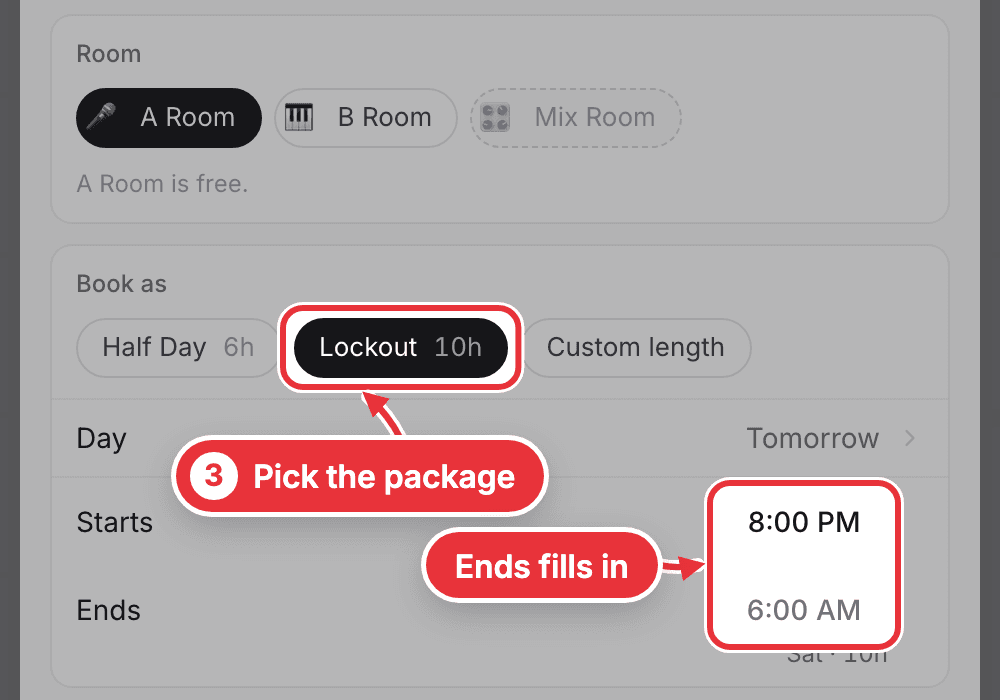
A night that fits no package? Press Custom length, set the hours and type the price. If the room has an hourly rate, By the hour books it by the hour instead.
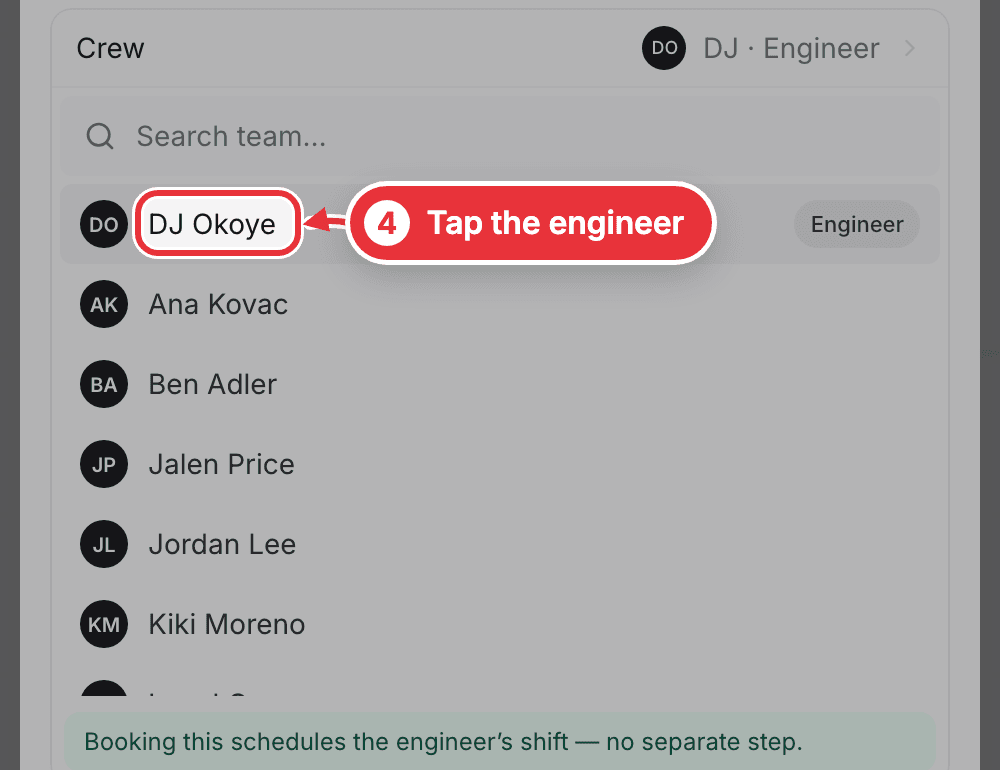
Step 4. Press Crew and tap the engineer. The first person you tap is the engineer. Tap anyone else and pick their job: Assistant Engineer, Producer, Host or Runner. Press Crew again to close the list.
Step 5. Check the heading and the Total, then press Book. The heading reads the booking back, like "Kofi Mensah at 8 PM in A Room". Purpose, Gear and Note can wait.
The form says Session created, closes, and the session is on the Calendar.
What happens when you press Book
- The client gets an email saying they're booked, with the day, the time and the room, and a View or change booking button. It only goes if they have an email on file.
- A deposit, if your studio asks for one, goes to the client as its own bill, and the app tells you it's on its way. You set it in Settings, under Invoice, on the Deposit line. A booking that starts right now never asks for one.
- Everyone on the crew is told on their phone and by email. Putting an engineer on the session also puts it in their hours: there's no shift to add.
Move it or call it off
Click the session on the Calendar to open it.
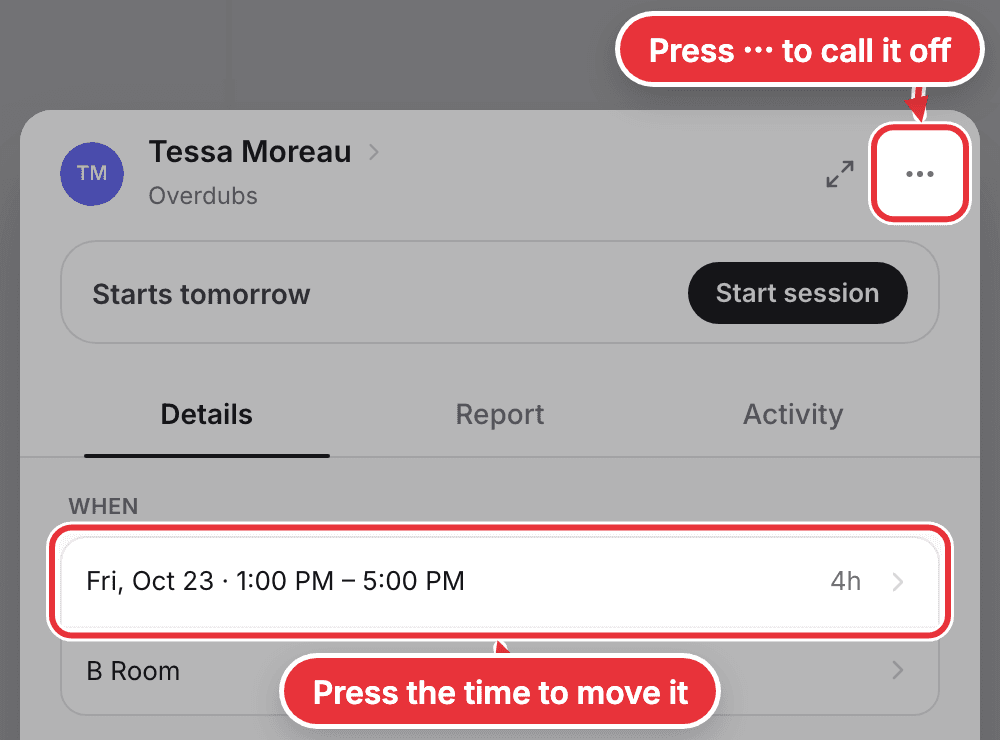
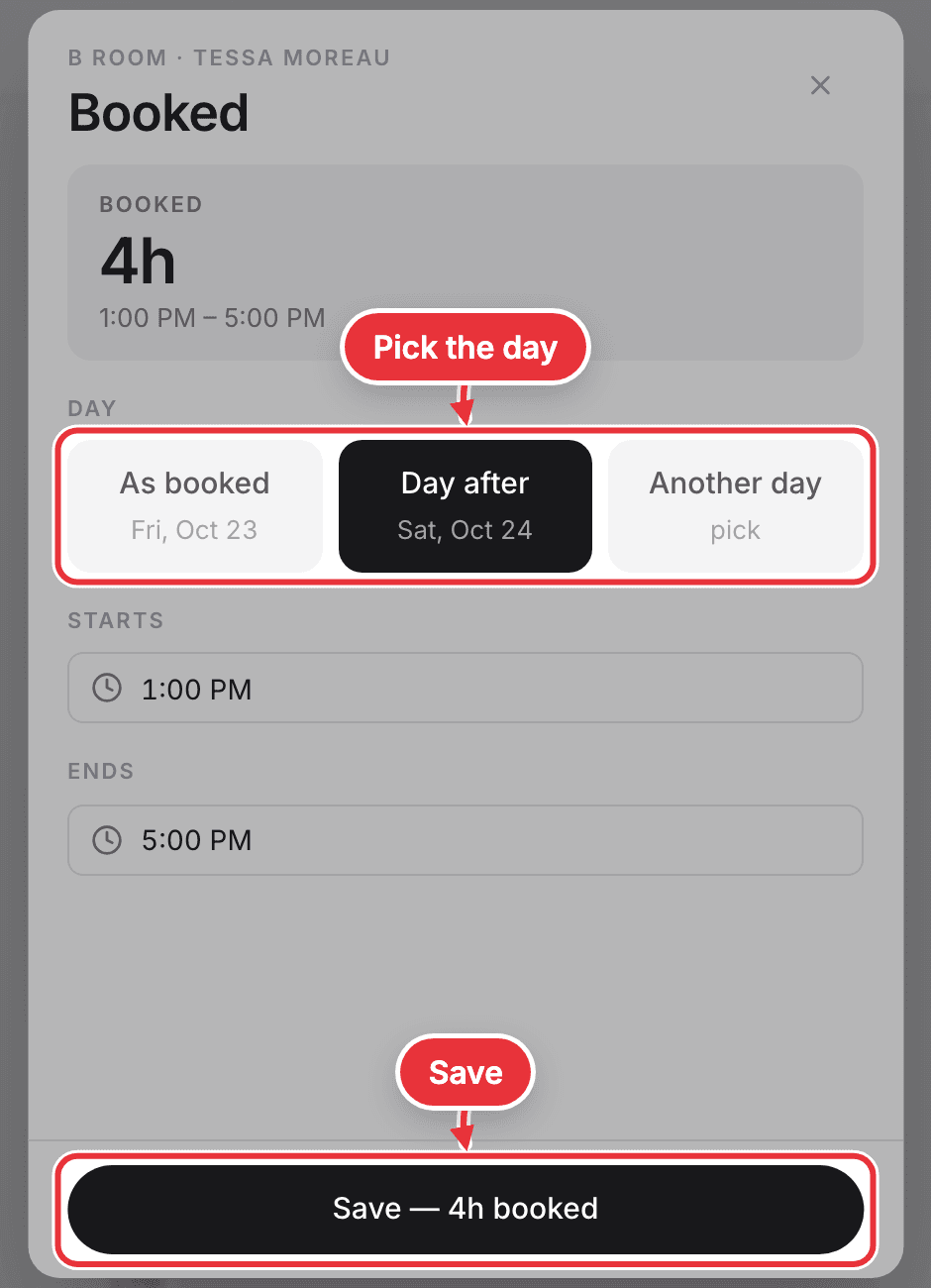
To move it, press the booked time under When. Pick the day, change Starts or Ends, and press Save.
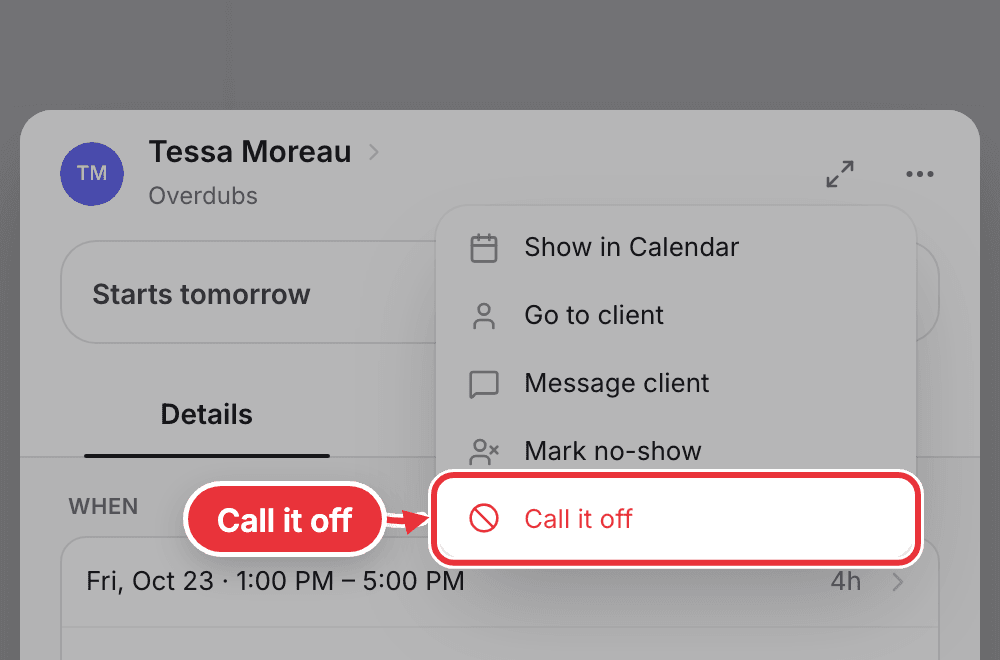
To call it off, press ⋯ at the top right, then Call it off, then the red button at the bottom of the sheet.
Either way, everyone on the crew is told. The client isn't told yet, even though the sheet offers to: message them yourself with Message client, in the same ⋯ menu. An unpaid deposit is cancelled along with the session. A paid one stays, and the session says to settle it with the client.
Still need an engineer? See Put an engineer on a session.