Put hosts and runners on shifts
Hosts and runners work shifts, which you add from the Shifts row at the top of the Week. Engineers and assistants go on the session itself instead: see Put an engineer on a session.
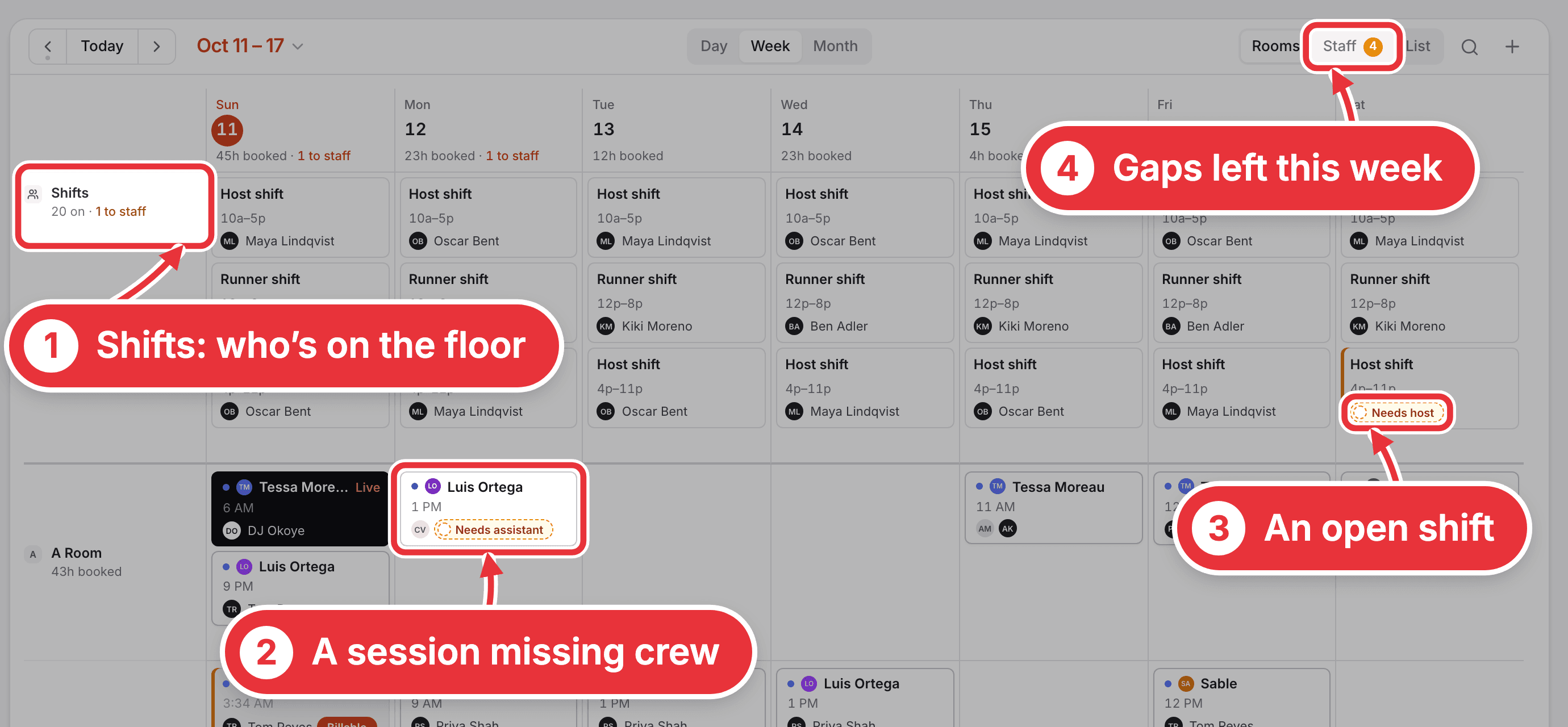
Step 1. Open Calendar, then Week and Rooms. The Shifts row at the top holds your hosts and runners. The rooms below hold the sessions.
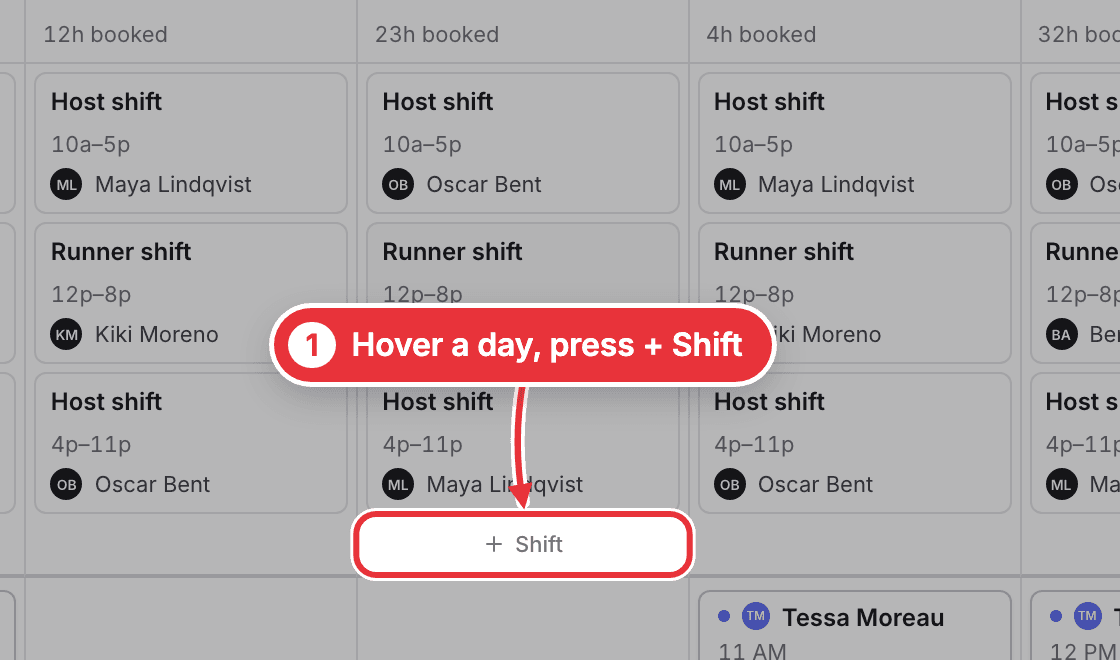
Step 2. Hover over the day you want and press + Shift.
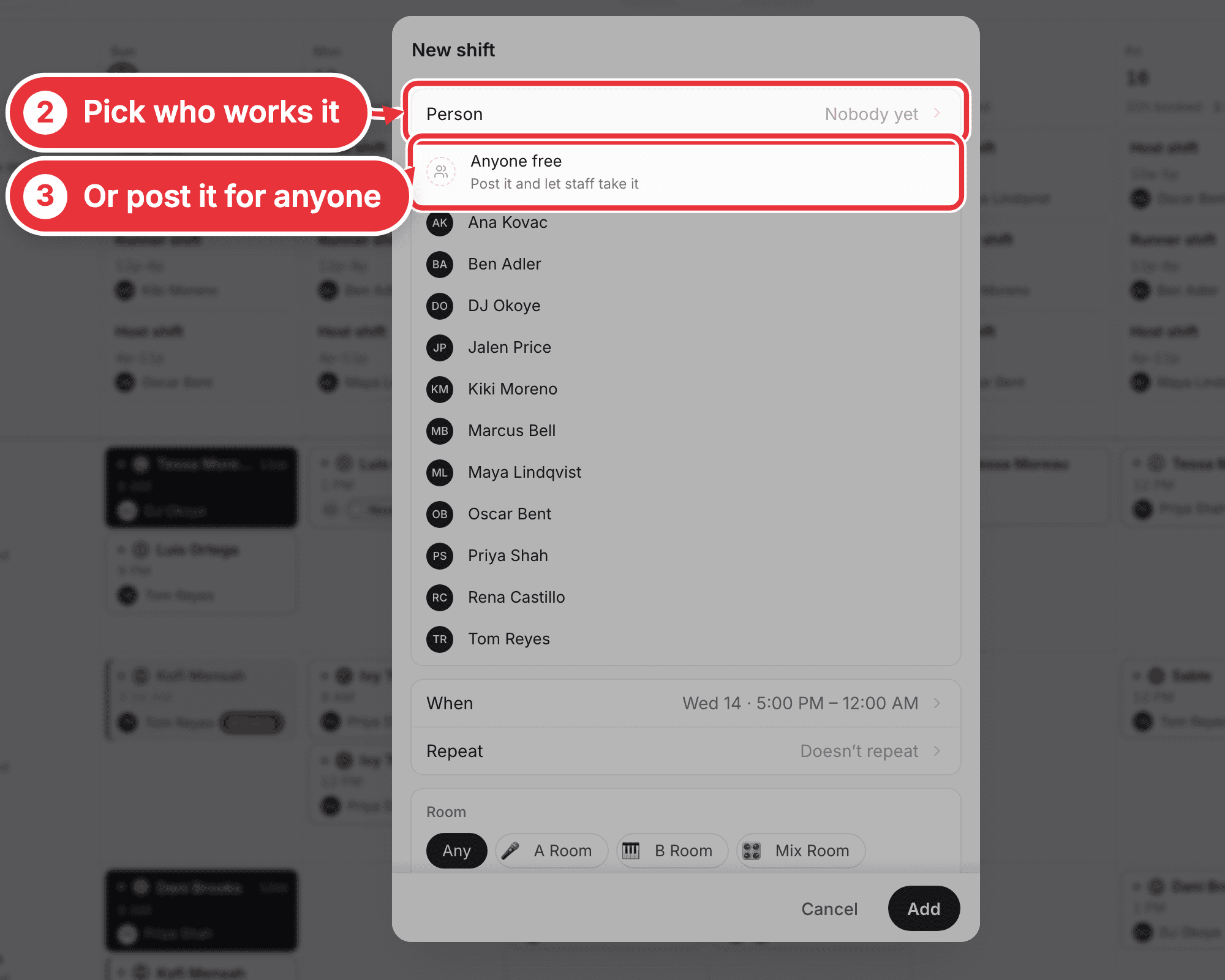
Step 3. Under Person, pick who works it. Can't name someone yet? Pick Anyone free instead: the shift is posted, and the first person to take it gets it. (Anyone free only shows if you've switched on open shifts on Team.)
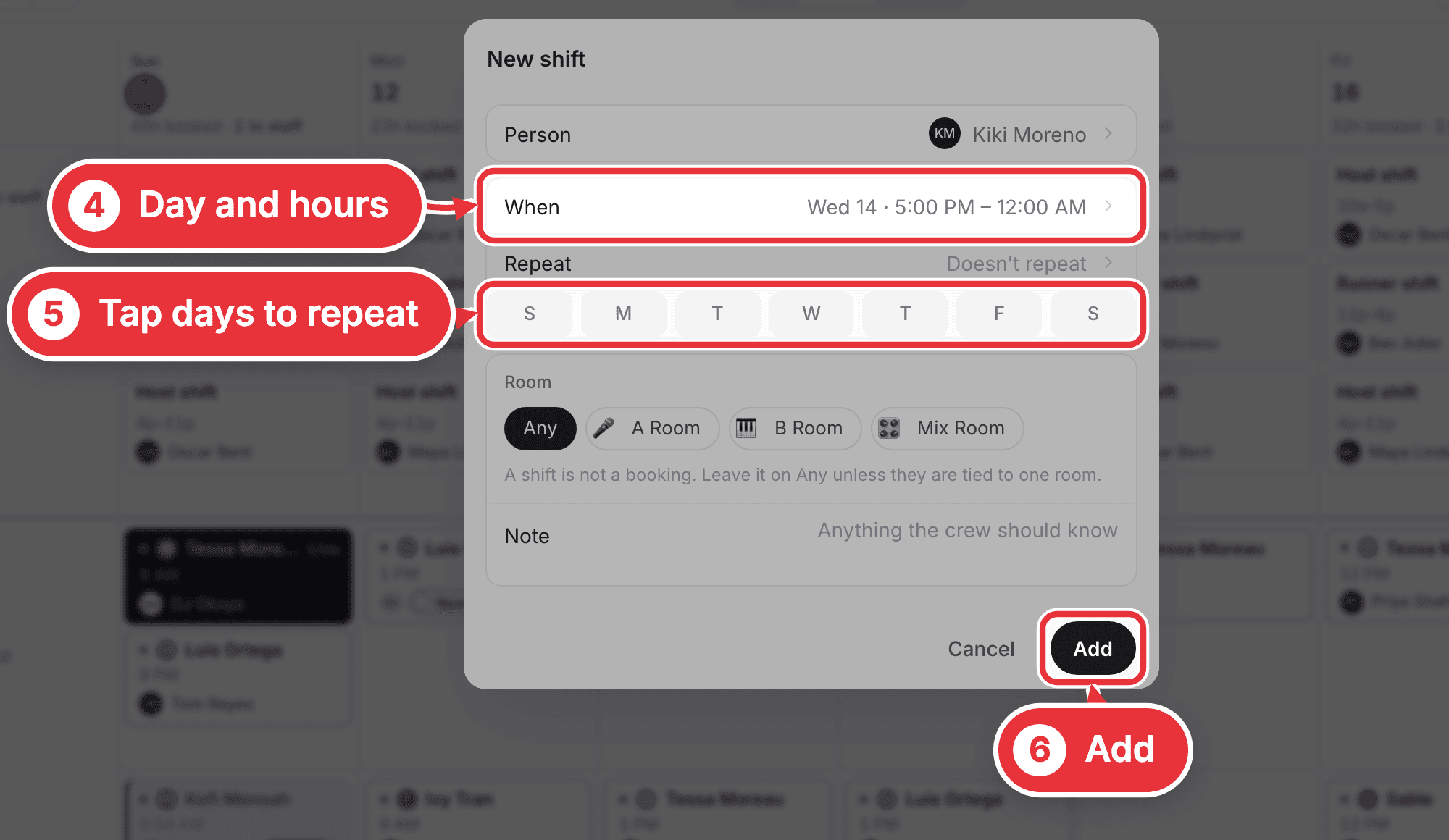
Step 4. Check When (the day and hours). For a regular slot, tap the days under Repeat, then pick an Until date. Leave Until empty and it only repeats this week. Press Add.
The shift shows up straight away, named after the person's job: "Runner shift · 12p–8p · Kiki Moreno". It's on their own calendar right away too.
On a phone, press + on the Calendar and choose New shift. To fill a whole week in a few clicks, use the Staff view: see Check the whole week.